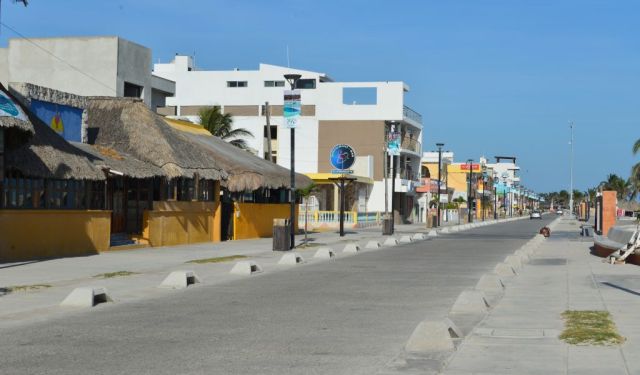


Progreso Introduction Walking Tour (Self Guided), Progreso
Mérida, the capital of the Yucatán Peninsula, and the seaside town of Sisal were simply too far apart, and merchants were losing patience. In 1872, businessman Juan Miguel Castro proposed a straightforward solution: “Let’s move the port closer to Mérida.” Thus, Progreso was born-not by accident, but by design. Its very name, meaning “progress” in Spanish, reflected the ambition of creating a more efficient trading hub.
The town quickly became the lifeline of the henequén boom. Henequén, a plant native to the peninsula, produced fibers used for rope and twine. By the late 19th century it was nicknamed “green gold,” fueling Yucatán’s economy and fortunes. Progreso’s docks and warehouses bustled with activity, sending bales north to the United States and across the Atlantic to Europe. The port became a symbol of modernization, its warehouses, docks, and customs offices shaping the town’s early identity.
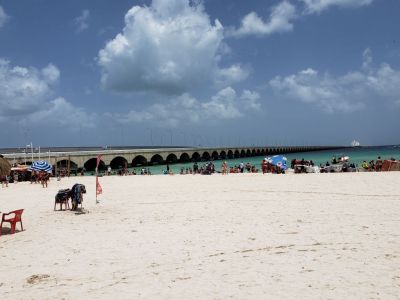
Infrastructure projects underscored Progreso’s growing importance. One of the most memorable was the Chocolate Pier, built in 1942. Its name came from the dark wooden planks that resembled a chocolate bar, but its significance went beyond appearances. The pier represented Progreso’s mid-20th-century efforts to modernize its facilities and meet the demands of new maritime trade.
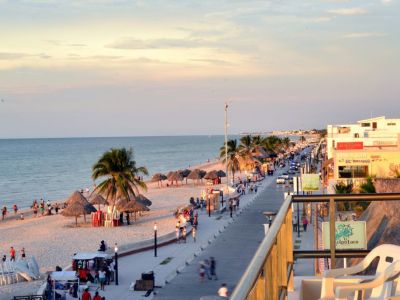
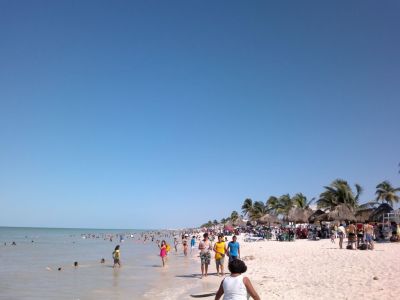
As the henequén industry declined in the 20th century, Progreso shifted toward fishing, salt production, and eventually tourism. What had once been purely functional spaces-like Progreso Beach or the Chocolate Pier-took on new meaning as symbols of local identity and points of attraction. By the late 20th century, cruise ships began docking in the bay, and the same waters that once carried ropes and salt to distant markets now brought international travelers eager to explore the Yucatán.
What began as a shortcut for impatient merchants has since grown into a city of its own. By the end of this walk, you’ll see that Progreso is more than just “progress”-it is a living timeline of Yucatán’s enduring connection to the wider world.
The town quickly became the lifeline of the henequén boom. Henequén, a plant native to the peninsula, produced fibers used for rope and twine. By the late 19th century it was nicknamed “green gold,” fueling Yucatán’s economy and fortunes. Progreso’s docks and warehouses bustled with activity, sending bales north to the United States and across the Atlantic to Europe. The port became a symbol of modernization, its warehouses, docks, and customs offices shaping the town’s early identity.
Infrastructure projects underscored Progreso’s growing importance. One of the most memorable was the Chocolate Pier, built in 1942. Its name came from the dark wooden planks that resembled a chocolate bar, but its significance went beyond appearances. The pier represented Progreso’s mid-20th-century efforts to modernize its facilities and meet the demands of new maritime trade.
As the henequén industry declined in the 20th century, Progreso shifted toward fishing, salt production, and eventually tourism. What had once been purely functional spaces-like Progreso Beach or the Chocolate Pier-took on new meaning as symbols of local identity and points of attraction. By the late 20th century, cruise ships began docking in the bay, and the same waters that once carried ropes and salt to distant markets now brought international travelers eager to explore the Yucatán.
What began as a shortcut for impatient merchants has since grown into a city of its own. By the end of this walk, you’ll see that Progreso is more than just “progress”-it is a living timeline of Yucatán’s enduring connection to the wider world.
How it works: Download the app "GPSmyCity: Walks in 1K+ Cities" from Apple App Store or Google Play Store to your mobile phone or tablet. The app turns your mobile device into a personal tour guide and its built-in GPS navigation functions guide you from one tour stop to next. The app works offline, so no data plan is needed when traveling abroad.
Download The GPSmyCity App



Progreso Introduction Walking Tour Map
Guide Name: Progreso Introduction Walking Tour
Guide Location: Mexico » Progreso (See other walking tours in Progreso)
Guide Type: Self-guided Walking Tour (Sightseeing)
Tour Duration: 1 Hour
Travel Distance: 2.2 Km or 1.4 Miles
Tour Best Suited For: First-time visit
Guide Location: Mexico » Progreso (See other walking tours in Progreso)
Guide Type: Self-guided Walking Tour (Sightseeing)
Tour Duration: 1 Hour
Travel Distance: 2.2 Km or 1.4 Miles
Tour Best Suited For: First-time visit
Sights Featured in This Walk

City Walks Overview
